how to get connected, set yourself up, and stay in control
01 What ReDrive is
ReDrive lets someone else — the driver — control your e-stim session from their own browser, in real time, from anywhere. you're the rider. you open a link, your browser connects to the ReStim software running on your computer, and whatever the driver does on their panel comes through to your device live.
nothing gets installed. the whole thing runs in your browser. the only software on your machine is ReStim itself, which you're already running to use your hardware.
ReDrive is a driving tool built for FOC-Stim. it was purpose-built to control FOC-Stim boxes through ReStim (both by diglet48), and that's where it shines — the multi-electrode positioning, sweeps and 4-phase control are designed around what a FOC box can do. you can get it working with an audio-based box like the ET312 or 2B (see section 3), but think of that as a supported workaround rather than the main event.
your hardware limit is always yours. the driver controls the shape and level of the signal, but only within the maximum your own hardware allows — your physical box is the real ceiling and the driver can't touch it. set your power and your ReStim volume before you start (section 3).
02 What you need
A computer running ReStim — the open-source app that drives your e-stim box. ReDrive talks to it; it doesn't replace it.
Your e-stim hardware connected to ReStim and working on its own first. get a signal working locally before you bring ReDrive into it.
A browser on the same computer ReStim is running on. this is the important part — see the note below.
phone or tablet won't work as a rider on their own. ReDrive needs to reach ReStim, and ReStim runs on a computer. the rider browser has to be on that same computer (or one that can reach it on the network). you can't ride from just a phone the way a driver can drive from one.
this manual is written around the FOC-Stim box, but audio-based boxes work fine too — the ErosTek ET312, the 2B, and similar. they just need a one-time device setup in ReStim, covered in section 3.
03 Setting up ReStim
ReDrive sends T-code — position and volume values — to ReStim over a local WebSocket. there's a little one-time setup, but the part you actually repeat is short: two clicks every time you open ReStim. those two come first.
Every time you boot ReStim, do these two things: drag Volume to 100%, then press Start. that's the whole recurring ritual — the rest of this section is set-once stuff you'll rarely touch again.
1 · Turn the volume up to 100%
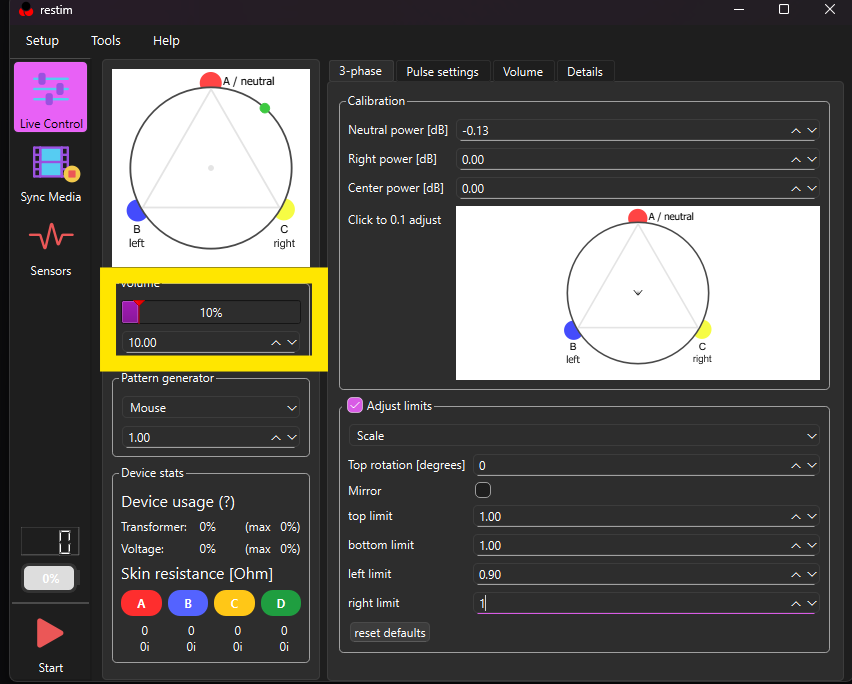
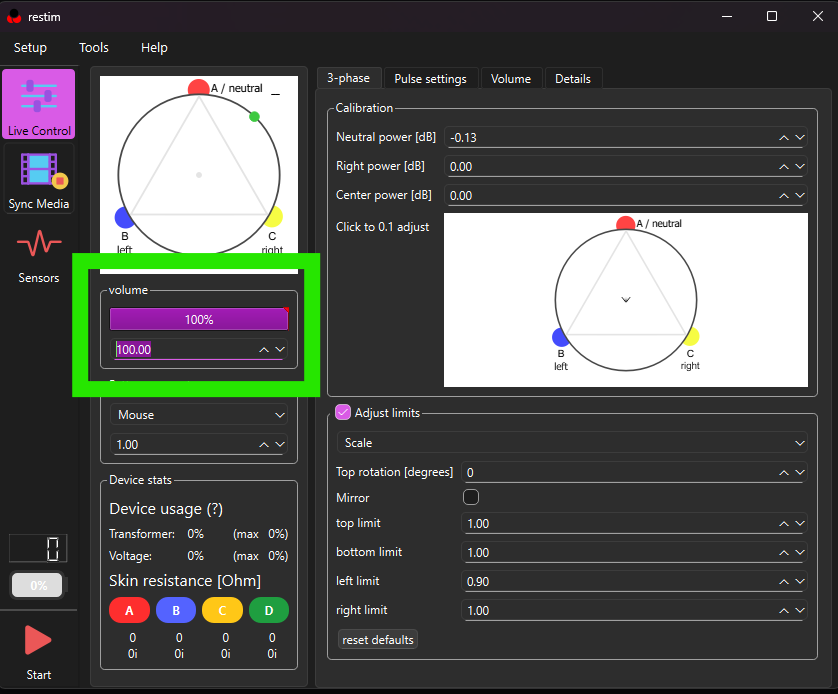
the single most important step, and the easiest to forget. ReStim resets its Volume to 10% on every launch. at 10% you'll feel almost nothing no matter what your driver does — in practice anything below about 60% is barely there on FOC/ReStim. set it to 100% the moment you open ReStim.
quickest way: click the number box (it reads 10.00) and just type a 0 onto the end so it becomes 100 — no fiddling with the slider or the little arrows. dragging the slider works too, whatever's faster for you.
✗ default on launch — 10%
✓ type 100 (or drag) — 100%
ReStim → Live Control → the Volume box in the left sidebar (below the triphase circle). type 100 into the number box (or drag the slider) to go from the default 10% up to 100%. the slider and the value (10.00 → 100.00) move together.
this Volume is a software percentage — it scales the output as a fraction of what your physical box puts out. turning it to 100% does not override or raise your box's actual power knobs; those stay exactly where you set them. it just stops ReStim from quietly throttling everything to a tenth before it ever reaches the hardware.
2 · Press Start
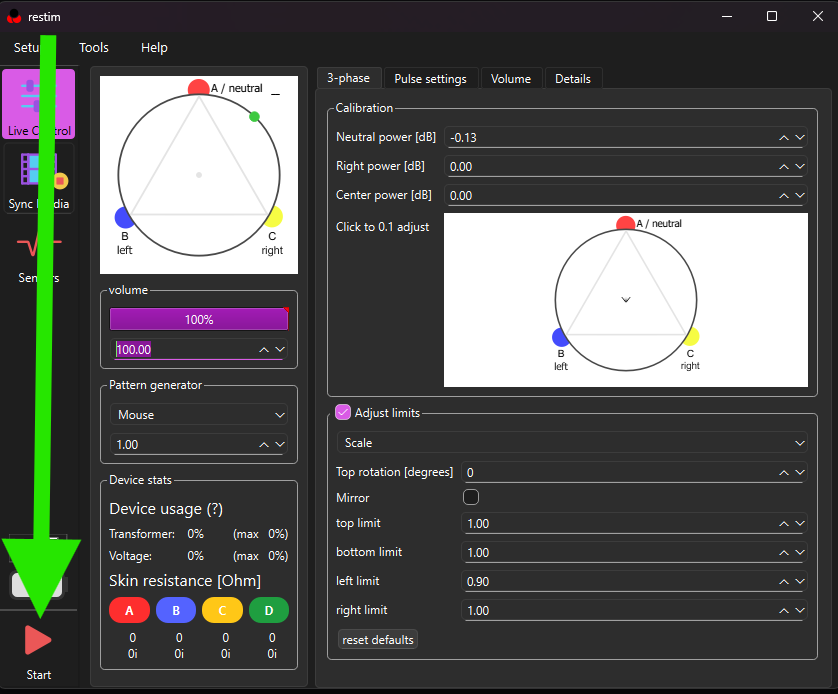
ReStim doesn't output anything until you press its Start button — the red ▶ at the bottom-left of the Live Control panel. on a freshly booted ReStim with everything else left alone, Volume + Start are the only two clicks between you and feeling the driver.
ReStim → Live Control → the Start button (red ▶, bottom-left). press it to arm output. it turns into a Stop button while running — that's also your in-app panic stop on the ReStim side.
One-time setup — set it once, then forget it
you do the rest of this once, the first time you wire ReStim up. it sticks between launches, so on later sessions you can skip straight back to the two steps above. if signals already worked for you before, this is all done — move on.
WebSocket server
make sure ReStim's T-code WebSocket server is enabled and listening. by default ReDrive connects to ws://localhost:12346/tcode — ReStim's standard local address. if you haven't changed ReStim's port, there's nothing to change in ReDrive either.
Map the axes
open Tools → Preferences → Funscript / T-Code in ReStim and set the axes to match what ReDrive sends:
ReStim axis
Set it to
Volume
V0 — this is the master output level (it's often empty by default — set it).
Beta
L1 — electrode position. usually already L1, no change needed.
Alpha
L0 — the secondary oscillation axis.
also set ReStim's Limit Min / Limit Max for each axis to match your device's range. for a FOC-Stim box that's typically Volume 0→1, Beta −1→1, Alpha −1→1.
if you have a 4-channel box and the driver wants to use 4-Phase mode, you'll also need the e1–e4 electrode axes mapped here. ask your driver whether they plan to use it — for normal sessions the three axes above are all you need.
Using an audio box instead (2B / ET312)
this manual is written around the FOC-Stim box, but audio-based boxes like the ErosTek ET312 or the 2B work too. the only difference is a one-time choice in ReStim's device configuration wizard — once ReStim is pointed at your audio box, everything on the ReDrive side is exactly the same.
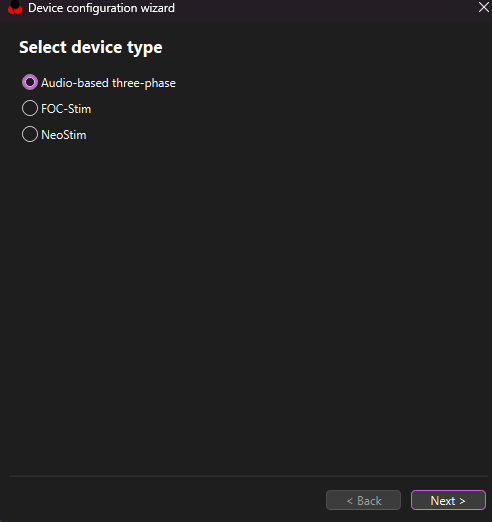
the wizard runs automatically the first time you launch ReStim. to reach it again later, open Setup → Device selection in ReStim's menu.
Step 1 — pick the device type. choose Audio-based three-phase.
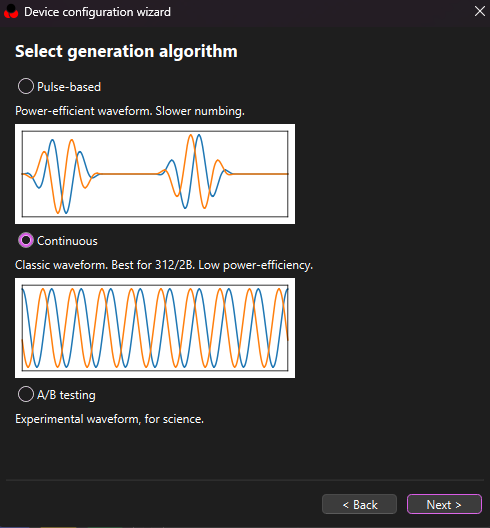
Step 2 — pick the generation algorithm. for the 312 and 2B, choose Continuous — ReStim labels it "Best for 312/2B" right on the screen.
Select generation algorithm → Continuous for 312/2B. (Pulse-based is more power-efficient but Continuous is the classic waveform these boxes expect.)
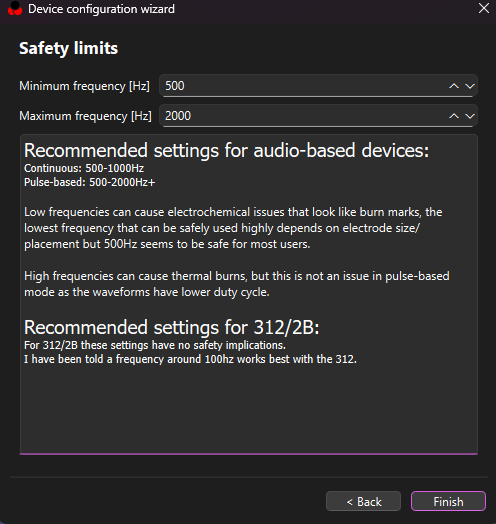
Step 3 — safety limits / frequency. the last page sets the frequency range. read ReStim's on-screen recommendations here — they're printed right on the page and they matter for safety.
Safety limits → set the min/max frequency. ReStim's own guidance: Continuous ≈ 500–1000 Hz; for the 312/2B specifically it notes a frequency around 100 Hz tends to work best. low frequencies relate to electrochemical risk and high frequencies to thermal risk — follow the on-page notes and your device's documentation.
frequency on audio boxes is a real safety setting, not just a feel preference. go with ReStim's recommended ranges shown on that page and what your box's manufacturer advises — don't push outside them just to experiment.
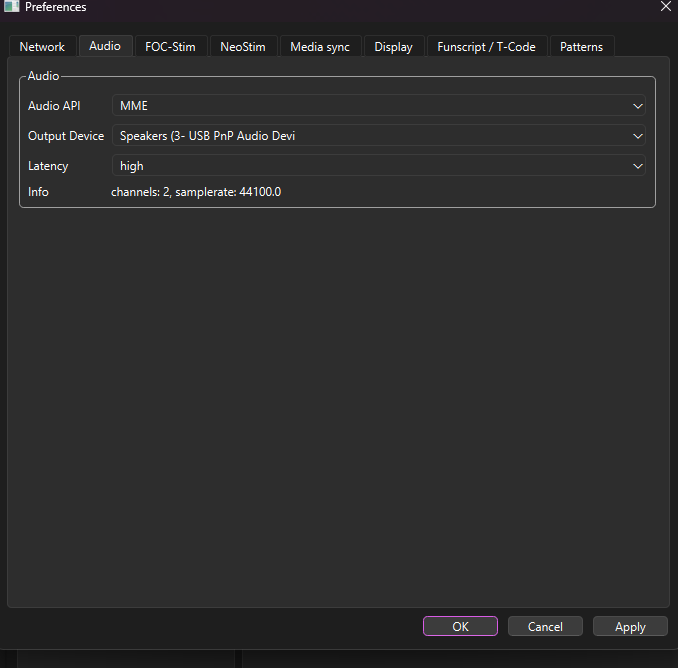
Changing which audio device the signal comes out of. if ReStim is sending audio to the wrong output (wrong soundcard / USB adapter), open Setup → Preferences → Audio tab and pick the right Output Device.
Setup → Preferences → Audio → Output Device — point this at the soundcard/adapter wired to your box.
that's the only extra setup. from here it's identical to any other box: set Volume to 100%, press Start, open your rider link.
04 Joining a session
there are two ways a session starts. usually the driver sets it up and sends you a rider link:
the driver creates a room and copies the Rider Link.
they send it to you however you like — chat, DM, anywhere.
you open it in your browser on the computer running ReStim.
the rider page loads and tries to connect to your ReStim automatically.
that's it — you're in the room. the other way around (where you set up first and hand the driver a link) is covered in section 9.
05 Connecting your device
when the rider page loads it automatically tries to reach ReStim. look at the small ReStim: status near the top of the page:
It says…
Meaning
ReStim: connected
you're good. T-code is flowing to your device.
ReStim: connecting…
still trying. if it sticks here, ReStim's WebSocket server probably isn't running, or the URL is wrong.
ReStim: disabled
forwarding is turned off. open Settings and switch it on.
The Settings panel
tap the ⚙ gear icon at the top of the page to open ReStim connection settings:
Enabled — the on/off switch for forwarding T-code to your device. on by default.
URL — where ReDrive looks for ReStim. leave it at ws://localhost:12346/tcode unless you've changed ReStim's port. hit Save after editing and it reconnects.
your connection setting is remembered in your browser — set it once and it sticks for next time. if you connect from a different computer or browser, you'll set it again there.
06 Adding your picture
optional, but it makes the session more personal. your driver has a touch panel with an anatomy image behind it — give them your photo and that's what they'll be working with. they slide their finger over your picture to direct the sensation.
How to add one
tap 📷 My Pic at the bottom of the rider page.
pick any photo — PNG, JPG, or WEBP.
a crop window opens with a body-outline guide. drag the photo to line yourself up with the guide — the panel is tall and narrow (portrait), so position the part you want the driver focused on.
hit Use this. it's sent to your driver immediately and appears in their anatomy picker.
What the driver sees
your cropped photo shows up in the driver's picker marked as yours. they can select it as the canvas overlay. only the driver sees it — it's not shown to other riders in the room.
your picture is remembered in your browser and re-sent automatically next time you connect, so you only crop it once. it's stored per-room on the server and only lives as long as the room does.
want a cleaner crop than the quick tool gives you? the Anatomy Overlay Maker lets you align and crop a photo to the exact panel proportions (portrait, 400×1000) before you upload it.
Setting your name
there's a Your name box near the top. type a name and the driver (and other riders) see it instead of "Rider 1". it's remembered for next time too.
07 Your screen, explained
most of the rider page is feedback — it shows you what the driver is doing so you're never guessing.
On screen
What it tells you
Driven by
your driver's name, once they've joined and named themselves.
The orb & feel text
a live read of the sensation — it reacts to intensity and pattern so you can see the signal building or easing even before you fully register it.
A ◄──► B bar
electrode position. the dot shows where the focal point is right now and slides as the driver sweeps it across you.
OUTPUT bar
the current output level as a percentage — the live signal strength reaching your device.
Electrode pips
only shown in 4-phase sessions — four small bars (e1–e4) lighting up to show which electrodes are active and how strongly. if you're on a normal setup you won't see these.
Ramp bar
appears when the driver starts a slow build — a progress bar so you can see a gradual intensity change coming.
Emotes
the row of reaction buttons (😍 ⚡ 💦 🔥 👋 😈) — tap to send a live reaction to your driver. it's how you talk back without typing.
a full-screen poppers cue may appear — a timed image telling you to inhale. it's a direction from your driver, on a countdown. the signal keeps running underneath it.
08 Staying in control
you are never locked in. three layers of control are always yours, no matter what the driver does — and they sit in a clear order.
The STOP button
big red ■ STOP at the top of the page. tap it and ReDrive stops forwarding signal to your device immediately — it sends a zero and pauses the connection. tap it again to resume. use it any time you want a break, want to adjust, or just want it to stop. no explanation owed.
ReStim's Volume (software)
the Volume control from section 3 — the 0–100% slider in ReStim. keep it at 100% so the driver's range is usable, but it's still a lever: it multiplies everything, so dropping it instantly cuts the overall level across the board. handy as a quick global trim without touching the box.
Your physical box
the knobs on your actual hardware are the real-world power, and your true off-switch. nothing the driver does — and nothing in any browser — can move them. if something is too much, this is the control that always wins. turn it down, or off.
STOP in ReDrive cuts the ReDrive signal — it does not turn your hardware off. ReStim may have its own activity, and your box holds whatever charge the moment allows. for a guaranteed stop, turn your physical device down or off — don't rely on the browser alone. agree on a limit with your driver before you start, and start low.
09 Setting up first (waiting rooms)
you don't have to wait for a driver to send you a link. you can set everything up on your end first and hand the driver a link instead:
on the ReDrive home page, choose Open Waiting Room.
you get a page with a driver invite link — send that to whoever you want to drive.
get yourself ready meanwhile: connect ReStim, add your picture, set your name.
when the driver opens your link, they'll be asked for their name, then the session goes live — your page moves straight into it and tells you who joined.
a waiting room holds for 30 minutes. if no driver claims it in that window, it expires and you just open a new one.
10 Troubleshooting
Problem
Fix
ReStim stuck on "connecting…"
make sure ReStim is running and its T-code WebSocket server is enabled. check the URL in Settings matches ReStim's port (default ws://localhost:12346/tcode).
Connected but feeling nothing
first check ReStim's Volume — it defaults to 10% every launch, which is barely perceptible. set it to 100%. make sure you've pressed Start in ReStim (red ▶, bottom-left). then confirm the driver is actually sending (their intensity may be at 0), and that your axes are mapped — especially Volume → V0, which is empty by default. (all in section 3.)
Position/sweep works but no power
that's the Volume axis. make sure Volume → V0 is set in ReStim and your dial is up. position and power are separate axes.
I feel a signal, but it's not what the driver is doing
ReStim is probably playing a local funscript on its Sync Media tab instead of the live signal. switch to the Live Control tab, press Start, and stop any local funscript. also check the Media player drop-down on Sync Media is set to Internal (its default at boot — only an issue if it got changed).
Driver shows as disconnected
their tab may have slept or dropped network. the room stays open for an hour — they'll reconnect and you'll see them come back automatically.
My picture didn't show up
re-crop and hit Use this while connected. very large images are downscaled automatically; if it still fails, try a smaller photo.
Opened the link on my phone, nothing connects
the rider page has to run where ReStim runs. open it on the computer with ReStim, not a separate phone.
11 Quick reference
You want to…
What to do
stop everything right now
tap the red STOP button (tap again to resume) — and turn your hardware dial down for a true kill
actually feel the signal (do this first!)
in ReStim, set Volume to 100% (type 100 in the box, or drag) — it resets to 10% every launch
arm ReStim to receive
press the Start button (red ▶, bottom-left of Live Control)
connect to your device
open the rider link on the computer running ReStim — it auto-connects; check the ReStim: status
fix a connection that won't complete
⚙ Settings → confirm Enabled is on and URL matches ReStim's port → Save
📷 My Pic → pick image → drag to align with the guide → Use this
get a cleaner photo crop
use the Anatomy Overlay Maker, then upload the result with My Pic
set your display name
type it in the "Your name" box at the top
react to your driver
tap an emote button (😍 ⚡ 💦 🔥 👋 😈)
set up before a driver joins
home page → Open Waiting Room → send the driver invite link
you set your hardware limit, always. ReDrive only ever shapes the signal within the ceiling you've chosen. agree on that limit with your driver before you begin, start low, and use STOP whenever you want — it's there for you.